Quick Guide to SSH into Computer Labs
Steps to remotely access Lab 314.232 machines for use in computing units.
0. Preface
This guide outlines the steps to remotely access Linux machines in lab 314.232. It will cover connecting via the Curtin VPN, setting up VS Code for SSH access, and configuring a Python environment with Miniconda.
1. Curtin Network VPN
If you’re on campus using the student Wi-Fi, you can skip this part.

Search for “Cisco VPN” and follow the appropriate installation articles for your operating system (Windows or Mac).
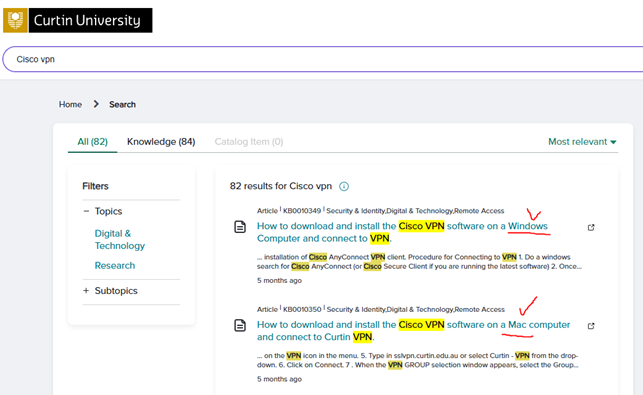
Once installed, connect to the Curtin network.
2. Setting Up VS Code
Install the following extensions in VS Code:
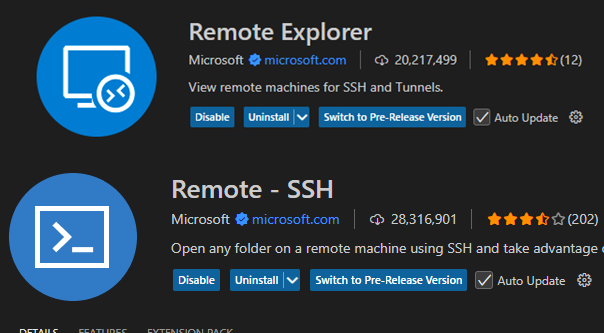
Install the following extensions in VS Code:
- Remote Explorer, SSH
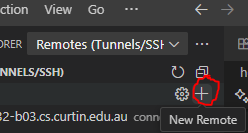
Click the “New Remote” button and enter the following command:
ssh 12345678@lab232-a01.cs.curtin.edu.au
or
ssh yourstudentID@lab232-b03.cs.curtin.edu.au
Select the default config location, connect to the remote, and choose “Linux” from the drop-down menu.

Then, enter your Curtin student password.
3. Set Up Python Environment
We’ll use Miniconda to manage Python and data science libraries.
Step 1: Download the Installer
wget https://repo.anaconda.com/miniconda/Miniconda3-latest-Linux-x86_64.sh
Step 2: Run the Installer
bash Miniconda3-latest-Linux-x86_64.sh
Follow the prompts. You can install it to a custom path like ~/miniconda3 for modularity.
Step 3: Initialize Conda
source ~/miniconda3/bin/activate
conda init bash  # use zsh/fish/etc. if applicable
Restart your terminal if needed.
Create and Activate Environment
conda create --name comp3007 python=3.10
conda activate comp3007
Your terminal prompt will now look like:
(comp3007) yourname@yourmachine:~$
Install Packages into the Environment
Once your comp3007 environment is active, you can install the necessary Python packages. For example, to install a core Python library like NumPy:
conda install numpy
Alternatively, if you have a requirements.txt file listing all your project’s dependencies, you can install them all at once:
# Fundamental scientific computing library
numpy

# Plotting and visualization
matplotlib

# Image processing library (often used for opening/saving images)
pillow

# Advanced image processing algorithms
scikit-image

# OpenCV for computer vision tasks
opencv-python

# ... and more
pip install -r requirements.txt
4. Useful Commands
Check installed packages:
conda list
Check available environments:
conda info --envs
Exit the SSH session:
Ctrl + D
Bonus: View Jupyter Notebooks Online
Use this web viewer to render .ipynb files directly in the browser:
5. Reference
- Sonny’s guide: “Set up miniconda3 and remotely access lab machines”
- Harry’s guide
- Data Mining lab sheet 1
Thanks for reading 😊
Leave a comment